“Workshop-Net” – the network for the digital workshop
 |
“Workshop-Net” is an ethernet-based, standardized communication protocol which connects garage service equipment and inspection equipment to the order system of commercial software of car dealerships, repair shops, tyre shops or inspection centres for the periodical technical inspection (PTI). |
 |
“Workshop-Net” is an international industry standard that emerged in 2021 from the former asanetwork standard, which was introduced in 1998.
“Workshop-Net” is supported by the European Garage Equipment Association (EGEA). |
What does the user need to set up “Workshop-Net”?
|
 |
The user simply downloads the NETMAN from the homepage and installs it in the preferred language.
The NETMAN is available for any popular operating system.
There may be multiple instances of the same equipment (e.g. emission testers).
All equipment and commercial software automatically connect to the NETMAN to participate in the “Workshop-Net” session.
Which equipment may be connected?
All kinds of garage and inspection equipment may be connected within a “Workshop-Net” session. Each equipment type offers services to perform standardized “Workshop-Net” tasks:
| Icon | Task | Equipment Type | Icon | Task | Equipment Type | |
|---|---|---|---|---|---|---|
 |
BR | Brake Testers |  |
OD | Diagnostic Units | |
 |
EM / EB | Emission Testers (Motor Bikes) |  |
OM | Oil Management Systems | |
 |
WA | Wheel Alignment Units |  |
WB | Wheel Balancers | |
 |
AC | AC-Service Equipment |  |
HL | Headlight Testers | |
 |
NL | Noise Level Meters |  |
SP | Suspension Testers | |
 |
TF | Transmission Flushing Units |  |
TI | Tire Inspection Units | |
 |
SS | Side Slip Testers |  |
TC | Tire Changers | |
 |
TP | Tire Pressure Measurement Systems |
How does “Workshop-Net” work practically?
Step 1: Create a new order in the order system of the commercial software
|
 |
 |
Owner data is approved master data of the customer stored in the DMS. The Owner is unique. |
 |
Vehicle data is approved master data mainly extracted from the customer vehicle’s registration documents and stored in the DMS. A Vehicle may be linked to an Owner. |
 |
Order data contains the order number according to the DMS order number scheme. An Order is mandatorily linked to a Vehicle. |
 |
Task data contains the demanded task to be processed at the equipment, the actual task state, and additional information such as operator, starting time, ending time, etc. A Task is mandatorily linked to an Order. |
Step 2: Approve the order in the commercial software
The DMS automatically sends the
information to the NETMAN after approval of the order by the operator. The NETMAN is handing over the information to the equipment which is able to perform the demanded task. |
 |
It is not mandatory to send owner data and is subject to customer demand or PTI regulations.
If there are multiple instances of the same equipment, which are able to perform the demanded task, then each will receive the order information.
Step 3: Process the task at the equipment
| Each equipment displays a list of pending orders for tasks which can be processed by the equipment. The operator selects and activates the task (e.g. order 25010 at the emission tester) and proceeds with the job (e.g. EM = emission testing). |
 |
All the necessary data about the vehicle and the owner is already available — there is no need for the operator to enter them at the equipment!
The selected task is blocked at all other equipment of that type, this prevents erroneous activation of the task.
Step 4: Complete the task at the equipment
| With the completion of the task, the equipment automatically creates the result data.
The result data will be sent back to the commercial software through the NETMAN. The completed task disappears from the pending orders list at the equipment. |
 |
 |
The result data is in XML format. The result data includes owner data voluntarily and vehicle data mandatorily.The result data contains all measurement, operational and assessment data retrieved from the equipment during the task process. The structure depends on the performed task type.Result data is saved permanently in the DMS. Equipment generally does not store any result data. |
Step 5: View the results
| The user may view the results with the WsN-VIEWER.
The WsN-VIEWER may be downloaded by the user for free from the homepage. The WsN-VIEWER may be installed multiple times on any Windows-PC in the office or in the workshop within the Local Area Network. The user may add his address and his company logo in the WsN-VIEWER to be shown on the protocol |
 |
Does “Workshop-Net” also support Cloud-Solutions?
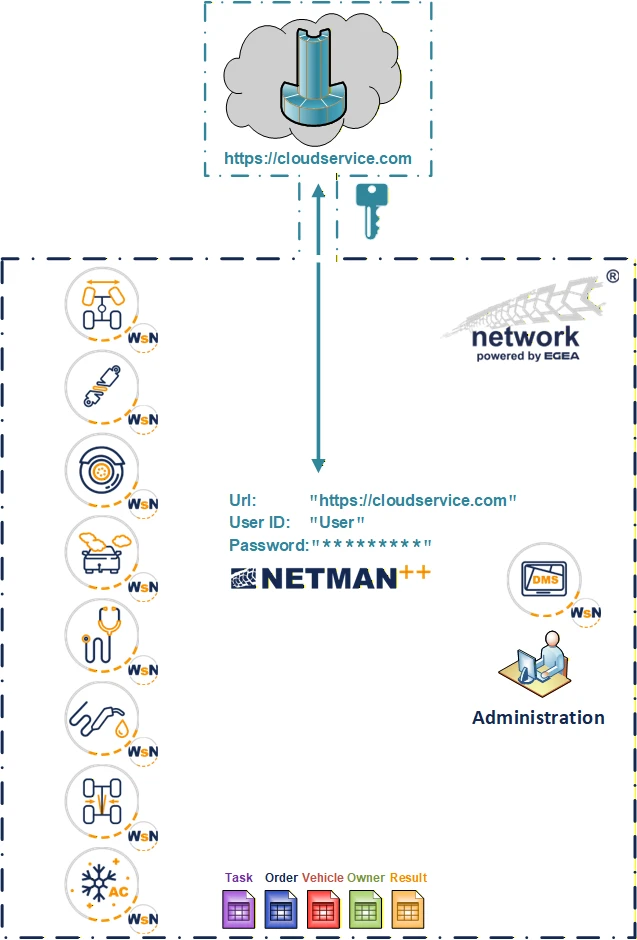
“Workshop-Net” also supports cloud-based services such as:
The user obtains the access data (URL, user ID, password) for the cloud service directly from the service provider. This access data is stored once in the NETMAN during initial setup. The NETMAN then establishes a secure, encrypted connection to the cloud service for all communication between the workshop and the cloud. |
 |
What are the benefits of using “Workshop-Net”?
 |
“Workshop-Net” enables interoperability and scalability
“Workshop-Net” closes the digital gap between the office and the workshop and allows flexible extensions of equipment and workstations up to solutions in the cloud! |
 |
“Workshop-Net” increases productivity and reduces costs!
No more duplicate data entries, no unnessessary printouts. It’s all automatic data distribution and time optimized workflows between office and workshop! |
 |
“Workshop-Net” increases quality and safety!
No more human errors by the analog transfer of data and results, all the equipment measurement and result data is generated automatically and is protected from third party access throughout the entire work process! |
 |
“Workshop-Net” increases transparency.
Real time overview of all current orders and their states and easy access to historical reports and results for the vehicle owner! |
 |
“Workshop-Net” is future-proofed!
The RESTful APIs are available for all platforms! “Workshop-Net” ist downward compatible back to 1998 and protects the investments of the installed equipment in the field! “Workshop-Net” creates values by faciliating complex solutions and supporting innovation! |


